
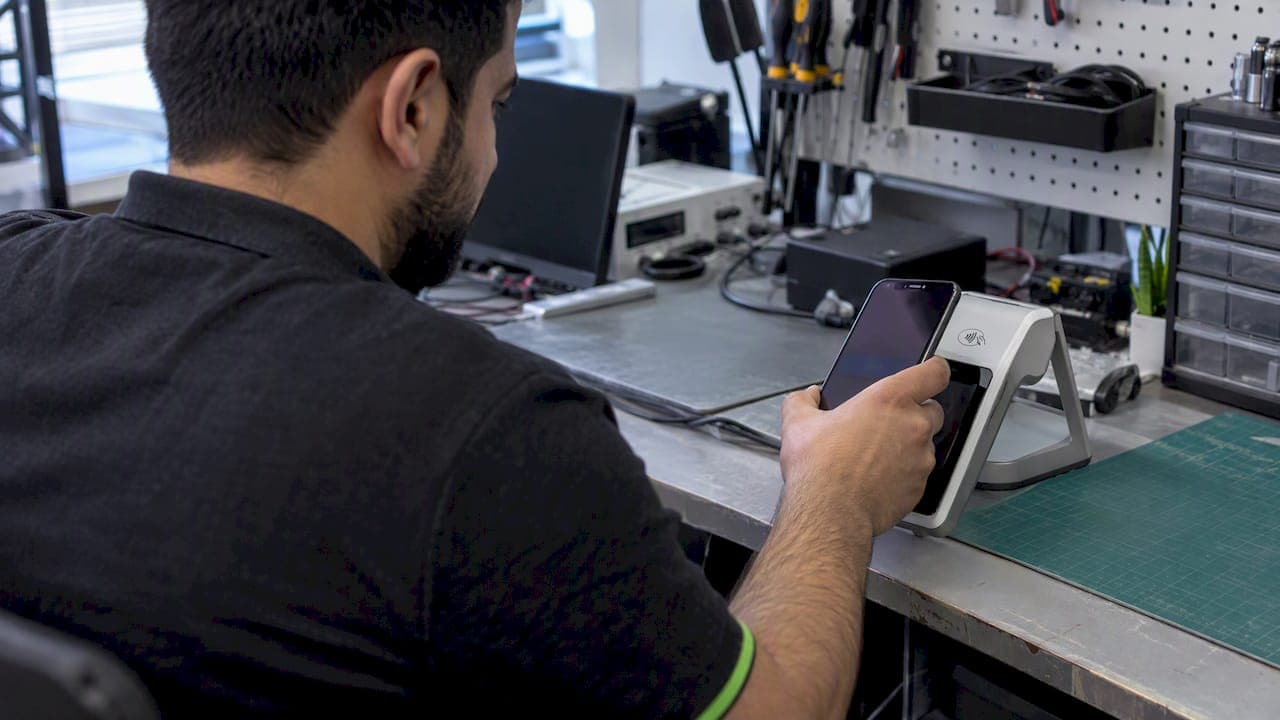
The fastest path to production is a PSP or SDK that already holds Apple's certificates and handles token decryption for you; choose Apple Pay JS when you need full control over a web checkout, or PassKit when you're building a native iOS experience. Whichever route you pick, the first action is the same: confirm your Apple Developer account status, or ask your payment service provider to enable Apple Pay through the Apple Pay Web Merchant Registration API.
TL;DR:
- Use HTTPS with TLS 1.2 or later, and make sure Apple can reach each payment domain directly without a proxy, redirect, or blocked verification file.
- Keep the certificates separate: the Merchant Identity Certificate authenticates server requests, while the Payment Processing Certificate decrypts tokens and must be renewed before expiration.
- A PSP can manage certificates and domain registration without an individual developer account, but confirm merchant token support early for subscriptions to avoid reauthorizing subscribers.
- Create the merchant session immediately within the payment button’s user gesture; slow network calls elsewhere in checkout can prevent the payment sheet from appearing.
- Test on physical hardware, not a simulator, and match its region to the sandbox card; only a real production card verifies authorization and settlement.
Table of Contents
- Accounts, server, device and UI requirements before you start
- Step-by-step merchant onboarding: Merchant ID, certificates, and domain verification
- Integration routes: Apple Pay JS, PassKit, and PSP/SDK shortcuts
- Code-level checklist and minimal endpoints for web and iOS
- Using Apple Pay sandbox, test cards, device requirements and production verification
- What the Apple Pay token contains and how to process it
- Troubleshooting and quick fixes for common errors
- How we support Apple Pay integrations
- Why the checklist matters more than the platform choice
- Get Apple Pay live without the certificate headaches
- FAQ
- Sources
Accounts, server, device and UI requirements before you start
Before writing a line of integration code, confirm you have the right accounts and infrastructure in place. A merchant needs a paid Apple Developer account only when managing certificates directly; platforms using the Web Merchant Registration API can onboard merchants without requiring each one to hold an individual account, since the PSP manages certificates and domain registration centrally.

Your server also has non-negotiable requirements. Apple's acceptable use guidelines require HTTPS, TLS 1.2 or later, and a domain that Apple's servers can reach directly, without a proxy or redirect sitting in the way. If your infrastructure sits behind a CDN or load balancer, confirm it doesn't block or rewrite requests to the verification path.
Device compatibility matters too: testing only works on physical hardware, never a simulator, and the device's region setting affects which test cards it can provision. Before scoping the build, check these:
- Apple Developer account access (or a PSP that supports Web Merchant Registration API).
- HTTPS and TLS 1.2+ on every domain that will present Apple Pay.
- A domain Apple's servers can reach without proxy interference.
- A physical iPhone or Mac with Touch ID, Face ID, or Apple Watch pairing for testing.
- Apple Pay button placement and sizing that matches Apple's branding guidelines, shown with the same prominence as other payment options.
Skipping any of these tends to surface as a cryptic failure later, usually during domain verification or merchant session creation.
Step-by-step merchant onboarding: Merchant ID, certificates, and domain verification
Onboarding with Apple follows a fixed sequence, and skipping ahead almost always causes a failure downstream. Follow this order:
- Register a Merchant ID in your Apple Developer account under Certificates, Identifiers & Profiles. You'll need Admin or Account Holder access to complete this step.
- Generate a Payment Processing Certificate. Most PSPs provide a Certificate Signing Request (CSR) for you to upload; alternatively, you can generate your own CSR if you're handling decryption in-house. This certificate expires periodically and needs a renewal reminder on your calendar.
- Create a Merchant Identity Certificate for web integrations. This is a separate certificate from the Payment Processing Certificate: it authenticates your server's requests to Apple when creating a merchant session, while the Payment Processing Certificate is used later to decrypt the actual transaction payload.
- Download and host the domain verification file at the exact path Apple specifies, then register the domain (and every subdomain that will present Apple Pay) in your Merchant ID configuration.
Apple's Merchant Integration Guide walks through each of these steps in detail, including the exact certificate formats and the merchant validation flow that follows. Domain verification fails most often because the file gets served through a redirect, wrapped in a CDN caching rule, or hosted at the wrong path entirely. Double-check that a direct, unauthenticated request to the verification file path returns the raw file with no redirects.
Pro Tip: Keep a shared document listing every certificate's expiration date and the subdomain it covers: expired certificates are the single most common cause of Apple Pay outages that teams discover only after a customer complaint.
Integration routes: Apple Pay JS, PassKit, and PSP/SDK shortcuts
Three paths lead to a working Apple Pay checkout, and the right one depends on how much control you need versus how fast you need to ship.
Apple Pay JS gives you full control over a web checkout. Your frontend calls canMakePayments, builds a payment request object, and listens for the onvalidatemerchant event. That event fires before the payment sheet appears and must call your server, which in turn posts your Merchant Identity Certificate to Apple and returns a merchant session object back to the browser, as specified in Apple's integration guide.
PassKit, Apple's native framework, follows a parallel pattern for iOS apps. You build a PKPaymentRequest, present a PKPaymentAuthorizationViewController, and implement delegate methods to handle the resulting PKPaymentToken once the user authorizes the payment.
PSP and SDK shortcuts skip most of the certificate and token-handling work entirely. A PSP that supports the Web Merchant Registration API can register and manage your Apple Pay configuration without requiring you to hold certificates or an individual developer account, which removes a meaningful chunk of engineering time from the project (Shopify Customer Consent: Test Pixels, Add Account Consent Without Code — AccountCraft). The tradeoff is less granular control over the checkout experience and a dependency on your PSP's release schedule for new Apple Pay features.
Choosing between these comes down to a few practical questions:
- How much transaction volume justifies the engineering time for a custom integration versus a faster SDK path?
- Does your team have the compliance capacity to handle certificate storage and token decryption in-house?
- Do you need recurring payments or subscriptions, which benefit from Apple's merchant tokens for continuity across a customer's devices?
- Is your checkout web-first, app-first, or both, since that determines whether you need Apple Pay JS, PassKit, or both?
Pro Tip: If you're building a subscription product, ask your PSP early whether they support merchant tokens: retrofitting them after launch means re-authorizing every existing subscriber.
Code-level checklist and minimal endpoints for web and iOS
Once you've picked a route, the implementation sequence is largely mechanical. Here's the order that avoids the most common timing and session errors.
Web flow:
- Check
ApplePaySession.canMakePayments()to confirm the browser and device support Apple Pay before showing the button. - Build the
PaymentRequestobject with your supported networks, merchant capabilities, and line items. - On button tap, call
session.begin(), which triggers theonvalidatemerchantevent. - Inside that handler, call your server endpoint (for example,
/create-merchant-session), which posts your Merchant Identity Certificate to Apple and returns the session object. - Pass that session back to
session.completeMerchantValidation(), which presents the payment sheet. - On
onpaymentauthorized, forward the encrypted token to your server, then to your PSP or your own decryption service.
iOS flow:
- Enable the Apple Pay capability in Xcode under Signing & Capabilities.
- Add your Merchant ID to the app's entitlements.
- Build a
PKPaymentRequestwith merchant identifier, supported networks, and payment summary items. - Present a
PKPaymentAuthorizationViewControllerinitialized with that request. - Implement the delegate method that receives the
PKPaymentTokenonce the user authenticates with Face ID, Touch ID, or a passcode. - Forward the token to your backend for processing.
On the server side, you need at minimum two endpoints: one that creates the merchant session by posting your certificate to Apple's validation URL, and one that receives the payment token and forwards it to your PSP, or decrypts it directly if you're handling that in-house. Store private keys in a hardware security module or a managed secrets vault rather than on the application server's file system.
Timing matters more than most teams expect. Apple requires the payment sheet to appear as a direct result of a user gesture, so the call to create the merchant session needs to happen early inside that gesture handler, without waiting on slow network calls elsewhere in the checkout flow, per Apple's guidance on the merchant validation flow. A sluggish server response at this step is a common reason the sheet never appears at all.
Using Apple Pay sandbox, test cards, device requirements and production verification
Testing Apple Pay requires real hardware. Apple's sandbox documentation confirms that simulators cannot complete an Apple Pay transaction end-to-end, so budget for at least one physical iPhone or Apple Watch during development.
Sandbox setup checklist:
- Create sandbox tester accounts in App Store Connect before provisioning test cards.
- Add test card numbers to the Wallet app on a physical device signed in to that sandbox tester account.
- Set the device region to a country that supports Apple Pay sandbox provisioning: a mismatched region will cause the Wallet app to reject the test card.
- Run through the full checkout flow, including the merchant validation step, on that device before moving to staging.
A key constraint worth planning around: sandbox test cards only validate the flow mechanics, not the realistic edge cases of a live processor, so a production test with a real card before launch remains the only way to confirm your PSP integration handles authorization and settlement correctly.
Before going live, verify your domain registration is still active, confirm certificates haven't expired since testing began, and set up basic transaction monitoring so a failed authorization surfaces immediately rather than after a batch of abandoned carts.
What the Apple Pay token contains and how to process it
When a customer authorizes a payment, Apple returns an encrypted token containing the payment data, a cryptogram, and metadata like the transaction amount and currency. This token (PKPaymentToken on iOS, ApplePayPaymentToken on the web) is what your server forwards for processing.
- Most PSPs decrypt the token on their end, which keeps your servers out of PCI scope for cardholder data and is the faster path for most teams.
- Decrypting in-house requires your own Payment Processing Certificate and private key, along with PCI DSS controls around key custody and storage, documented in PSP certificate guidance.
- For subscriptions, merchant tokens let recurring charges continue working even after a customer switches devices, since the token persists independently of any single phone or watch.
- Map billing, shipping, and contact fields from the Apple Pay sheet directly into your checkout form fields to avoid asking the customer to re-enter information Apple Pay already collected.
Troubleshooting and quick fixes for common errors
Most Apple Pay integration failures trace back to a small set of recurring causes.
- Certificate confusion: mixing up the Payment Processing Certificate (decrypts transactions) with the Merchant Identity Certificate (authenticates server-to-Apple sessions) causes validation errors that look unrelated to certificates at first glance.
- Domain verification failures: usually caused by a proxy, redirect, or CDN rule intercepting the verification file request.
- The payment sheet never appears: almost always a timing issue where the merchant session request happens too late inside the user gesture handler.
- Sandbox cards won't provision: check the device's region setting first, since a mismatched region is the most common cause.
Pro Tip: When the payment sheet fails silently, check your browser's network tab for the merchant validation request before assuming the certificate is the problem: a slow or failed server response looks identical to a certificate error from the frontend.
How we support Apple Pay integrations
We build payment integrations as part of our web applications and business website and mobile app development) work, with a UAE-based engineering team handling certificate setup, domain verification, and PSP integration end to end. Our GlobalPay) project involved building a fiat on/off ramp dapp with payment processing requirements that mirror the certificate and token-handling work Apple Pay demands. We've also written about PSP tradeoffs between Adyen and Stripe for teams weighing which processor fits their Apple Pay setup. A managed engagement typically covers certificate generation, domain registration, PSP configuration, end-to-end testing across sandbox and production, and ongoing transaction monitoring once the integration ships.
Why the checklist matters more than the platform choice
The conventional advice treats Apple Pay integration as a platform decision: web versus native, PSP versus custom build. That framing undersells the real risk, which is sequencing. Teams that fail at this rarely fail because they picked Apple Pay JS over PassKit; they fail because they generated the wrong certificate first, verified a domain that sits behind a redirect, or tested only in a simulator and assumed the flow would behave the same on a physical device.
If there's one thing worth prioritizing above the architecture decision, it's building the certificate and domain verification checklist before writing any payment code, and testing on real hardware from day one rather than near the end. Apple Pay's documentation is thorough, but it assumes a linear path that most teams don't follow on a first attempt. Treat the onboarding steps as a dependency graph, not a reading list, and the rest of the integration gets considerably easier.
— Amal
Get Apple Pay live without the certificate headaches
Getting Apple Pay working correctly means juggling certificates, domain verification, PSP configuration, and device testing, and a single misstep in that sequence can stall a launch for weeks. We handle the full setup as part of our payment integration work, pairing it with mobile app development) when you need PassKit built into a native iOS app alongside your web checkout.

Reach out for a scoped quote or a technical audit of your current checkout setup, and we'll map out exactly what your integration needs before any code gets written.
FAQ
How is Apple Pay profitable for merchants?
Apple Pay reduces checkout friction and cart abandonment by letting customers pay with a stored card and biometric authentication instead of typing card details manually. The profitability comes from higher completed-transaction rates rather than any direct fee Apple charges merchants, since merchant fees are set by the processor, not Apple.
How do you accept payments on Apple Pay?
You accept Apple Pay payments by registering a Merchant ID, generating the required certificates, verifying your domain, and either building the Apple Pay JS or PassKit integration yourself or using a PSP that supports the Web Merchant Registration API. Once configured, the customer authorizes payment with Face ID, Touch ID, or a passcode, and your server processes the resulting encrypted token.
What iOS versions support Apple Pay?
Apple Pay works on recent iOS and iPadOS versions running on devices with Touch ID, Face ID, or a paired Apple Watch, alongside compatible Mac models with Touch ID or a nearby paired iPhone. Checking canMakePayments in your code is the reliable way to confirm support on any given device, since Apple updates compatible hardware and software versions over time.
Why can't I link my card to Apple Pay?
Card linking failures usually stem from the card issuer not supporting Apple Pay in the cardholder's region, an incorrect billing address, or a device region setting that doesn't match the card's issuing country. During sandbox testing, this is almost always a device region mismatch rather than an actual card problem, as noted in Apple's sandbox testing guidance.